One assessment. Three ways to focus.
Switch between one question, a question paper and a continuous view. Answers and remaining time stay with the same attempt.
Watch the guide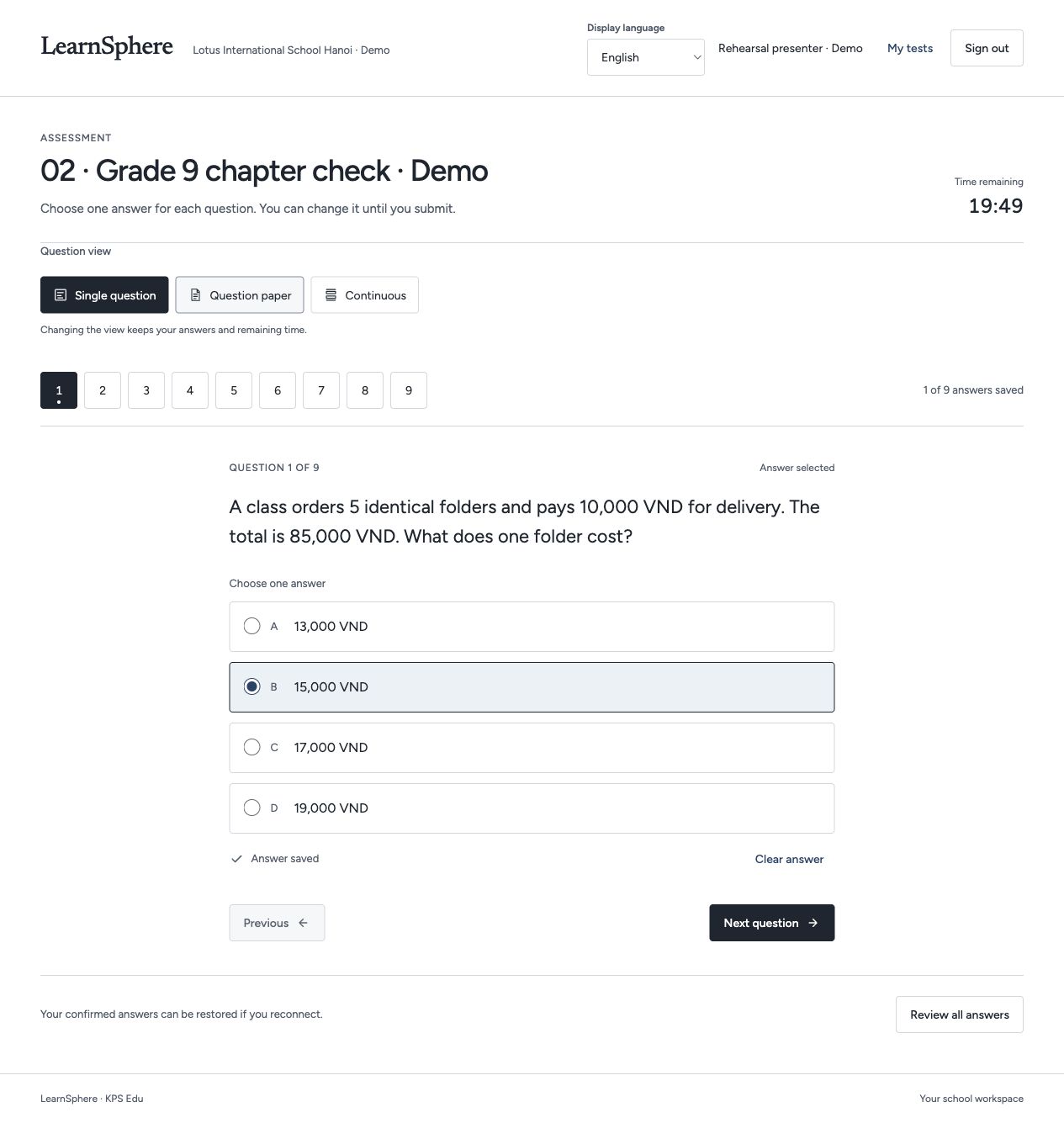
Platform / Platform overview
Connect course delivery, assessment and review in a shared environment for learners, educators and administrators.
 Explore the full screen ↗
Actual development preview · Fictional sample data · English interface
LEARNING, CONNECTED
Follow one learning journey, from the first question to a teacher’s next action.
Switch between one question, a question paper and a continuous view. Answers and remaining time stay with the same attempt.
Watch the guideReleased results highlight concepts to revisit. A missing result is shown separately from an incorrect answer.
Watch the guide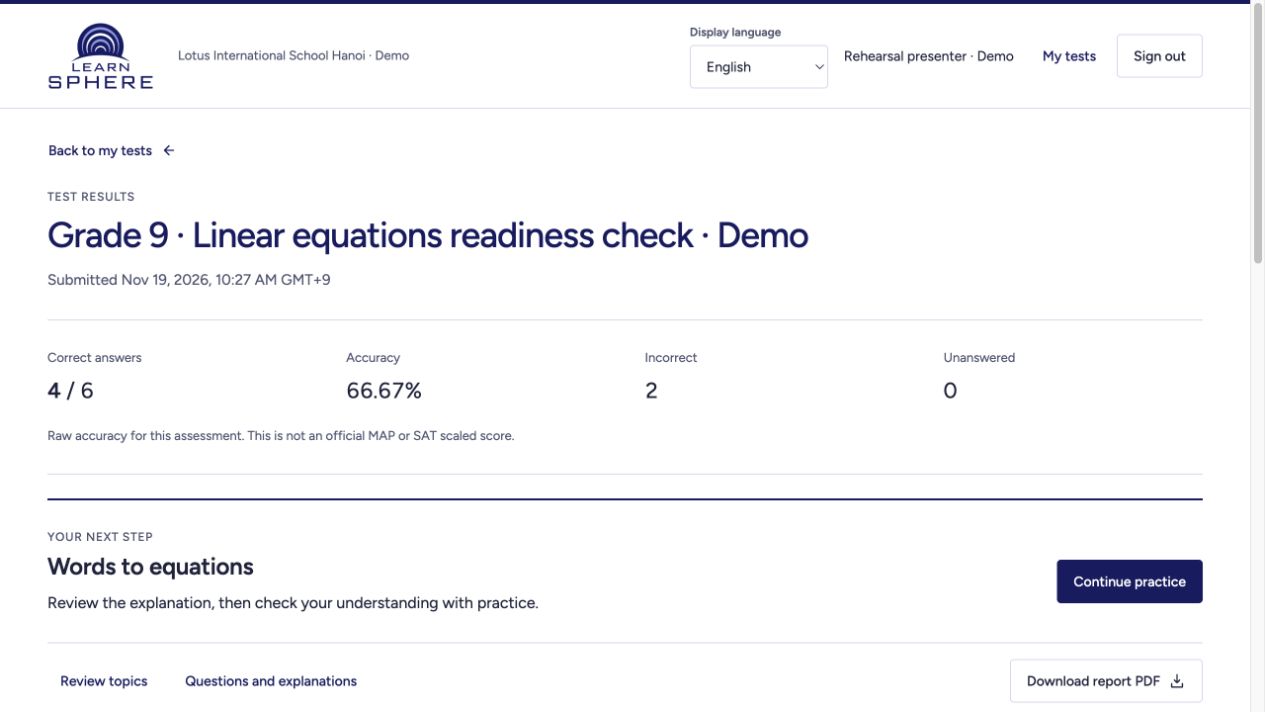
Open the linked segment of an assigned, published lesson. Read along, compare available transcripts and select a sentence to seek.
Watch the guide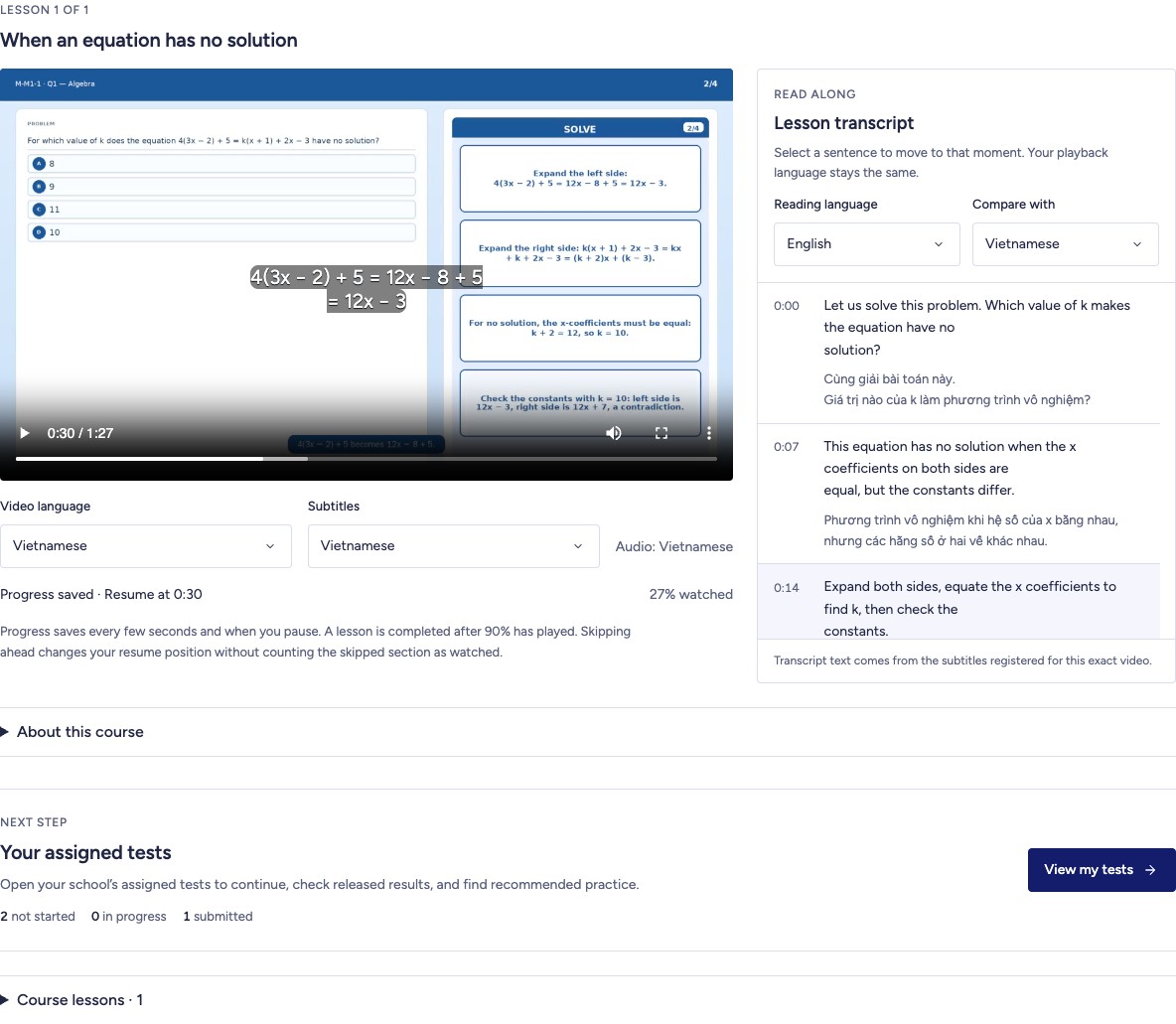
Continue a related practice set from your report. Practice progress is tracked separately from the original test score.
Watch the guide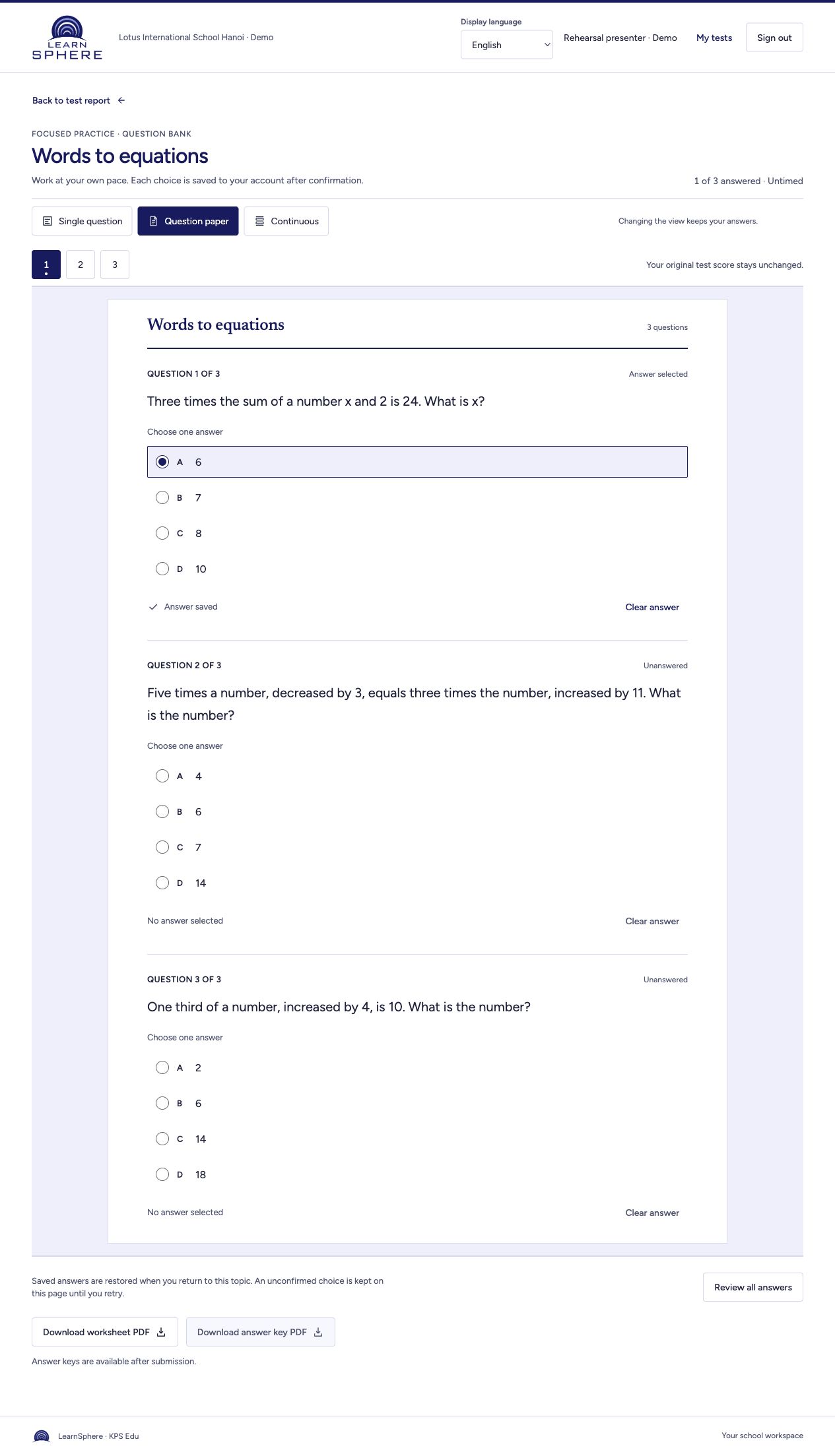
Review student-by-concept results, preview suitable questions and assign focused practice. Return to check progress.
Watch the guide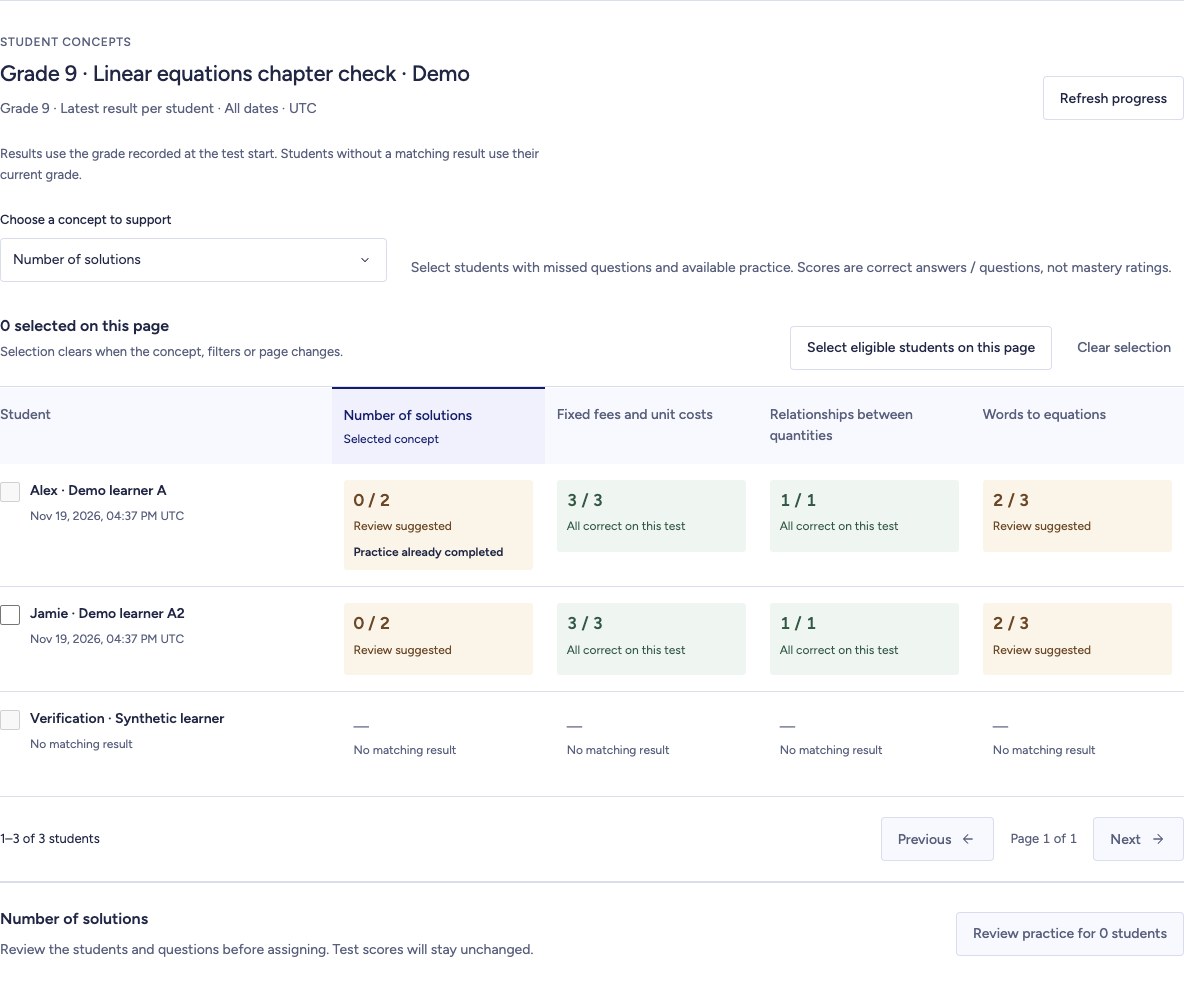
Interactive walkthrough · Changes here are not saved to learner accounts.
Discuss this workflow for your institution ↗Inside LearnSphere
Review the development screens for learners and education staff, with an explanation of each workflow.
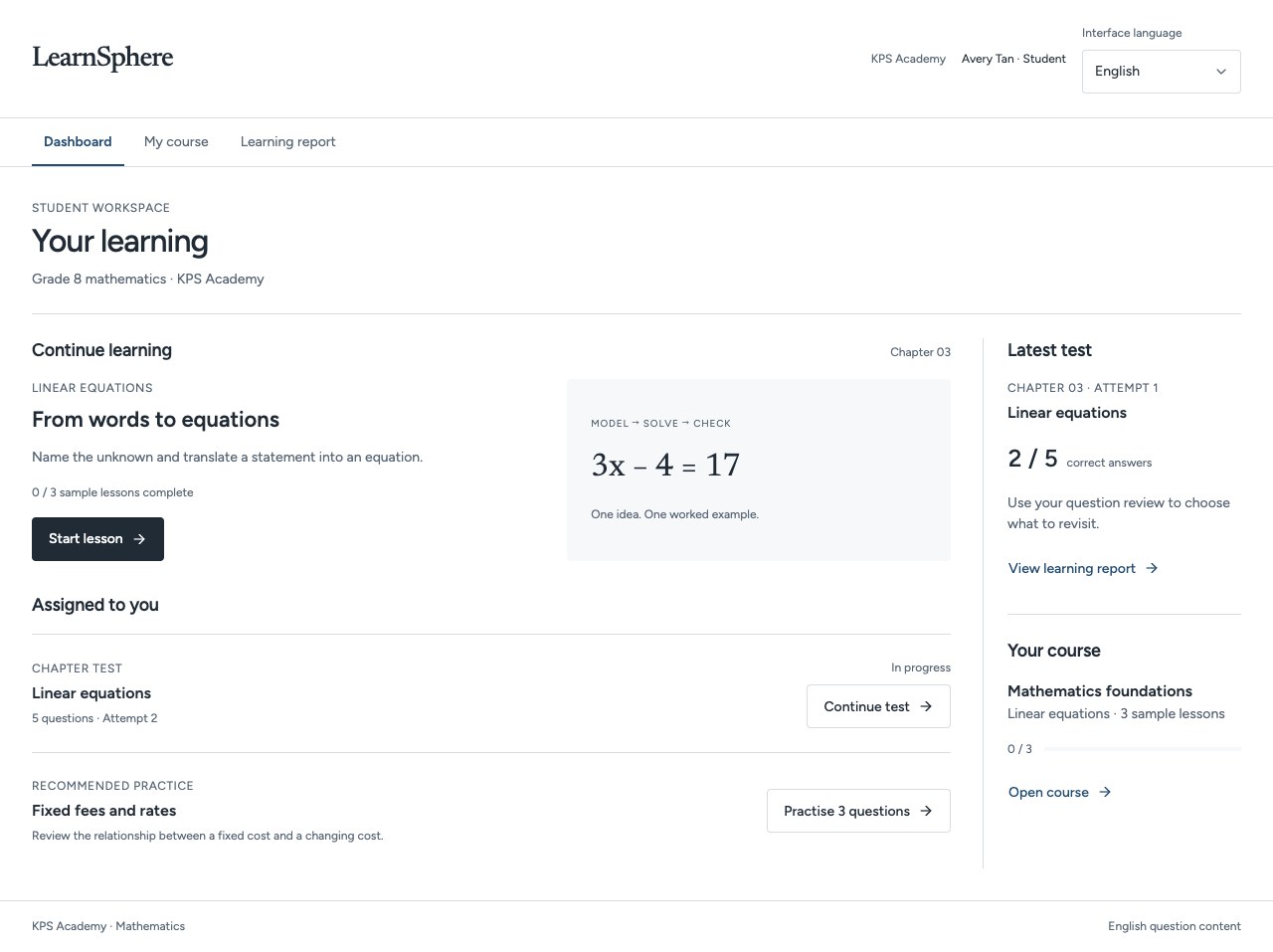
Explore the full screen ↗Assigned lessons, a chapter test and recommended practice sit together in the learner workspace.
Learners can see what to do next without navigating separate tools.
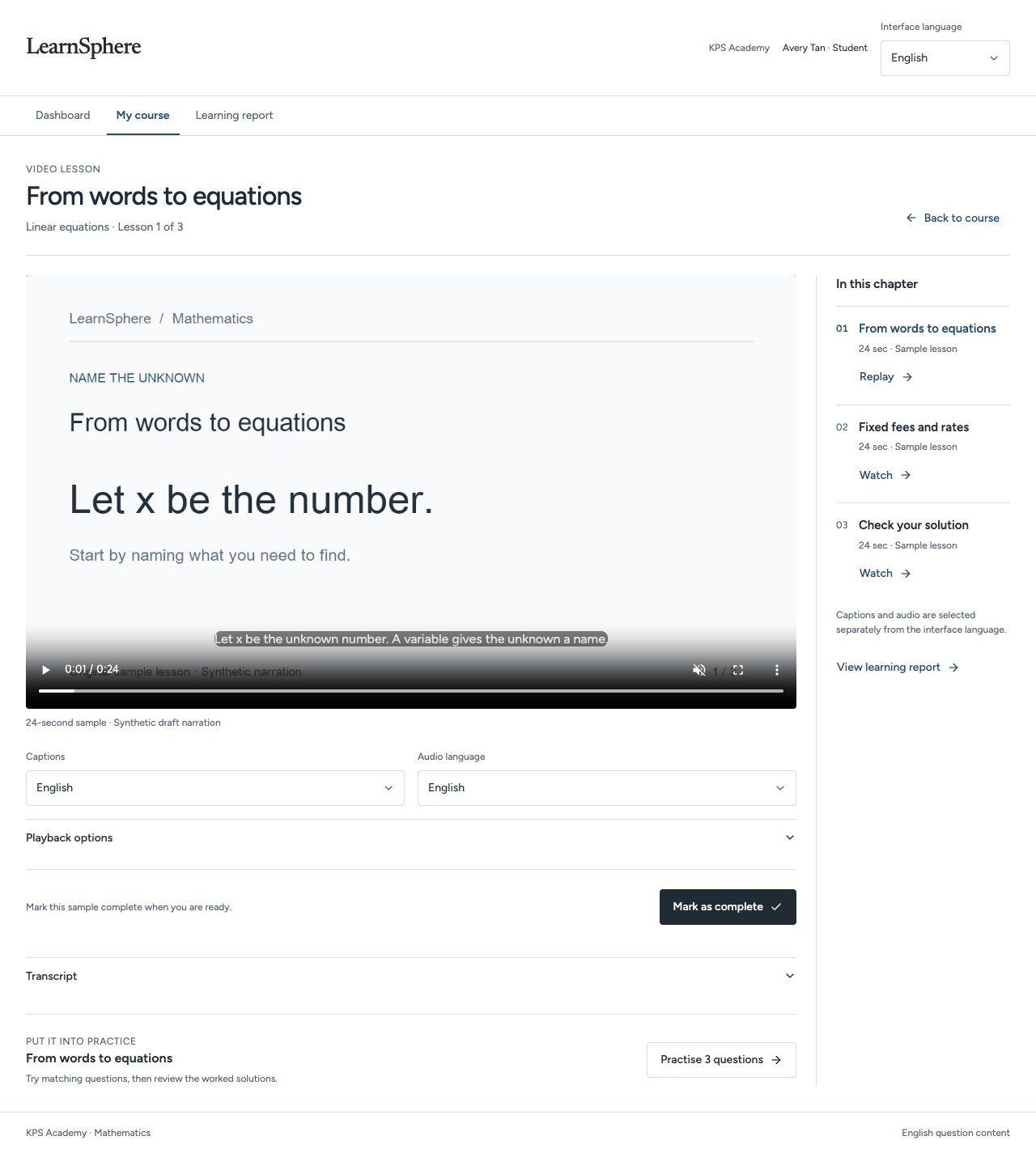 Explore the full screen ↗
Video lessons combine a chapter outline, captions, narration choices and matching practice.
Learners can revisit an explanation before attempting the related questions.
 Explore the full screen ↗
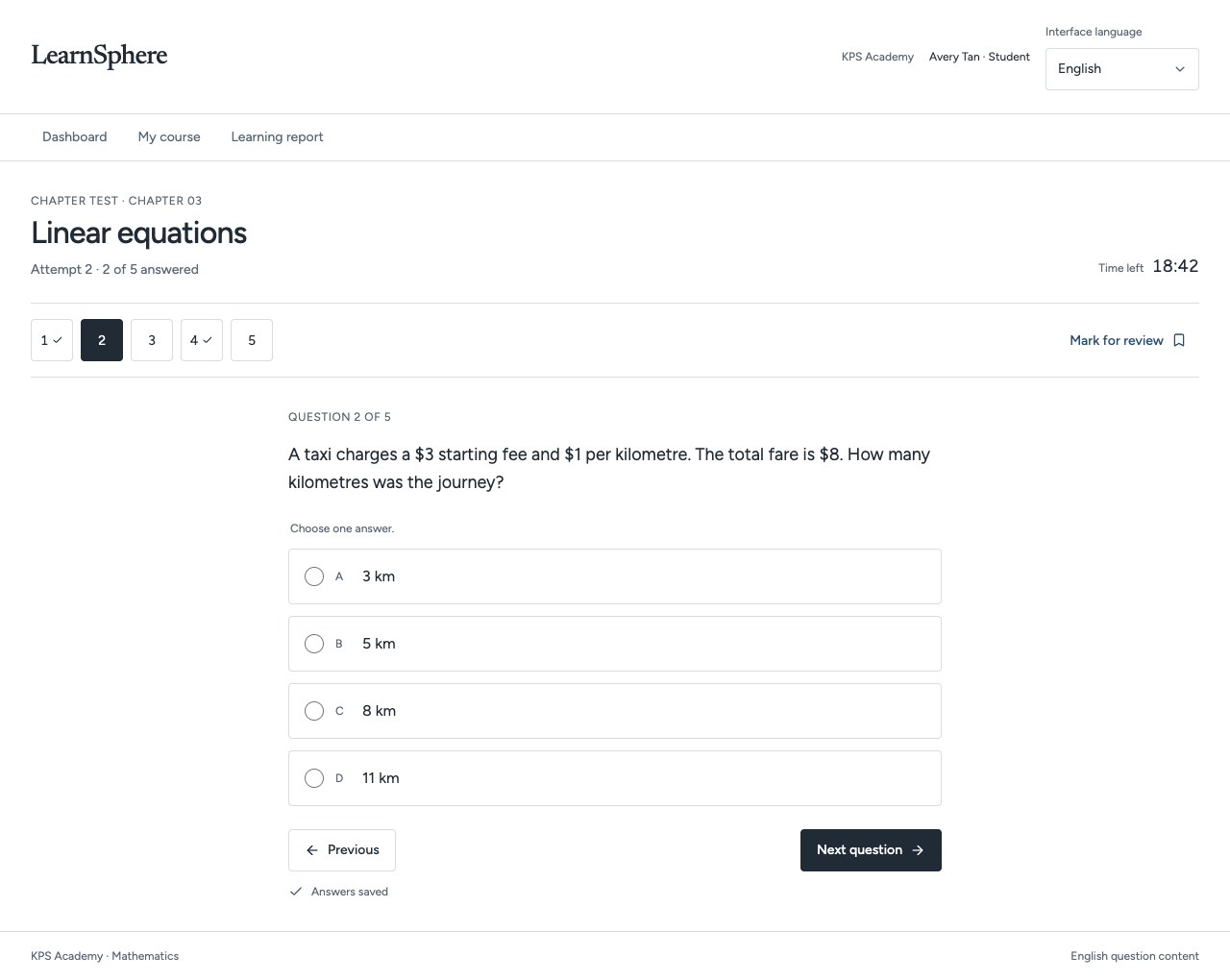
Question navigation, marked items and saved answer states make the assessment journey visible.
A structured assessment experience gives the review a meaningful starting point.
 Explore the full screen ↗
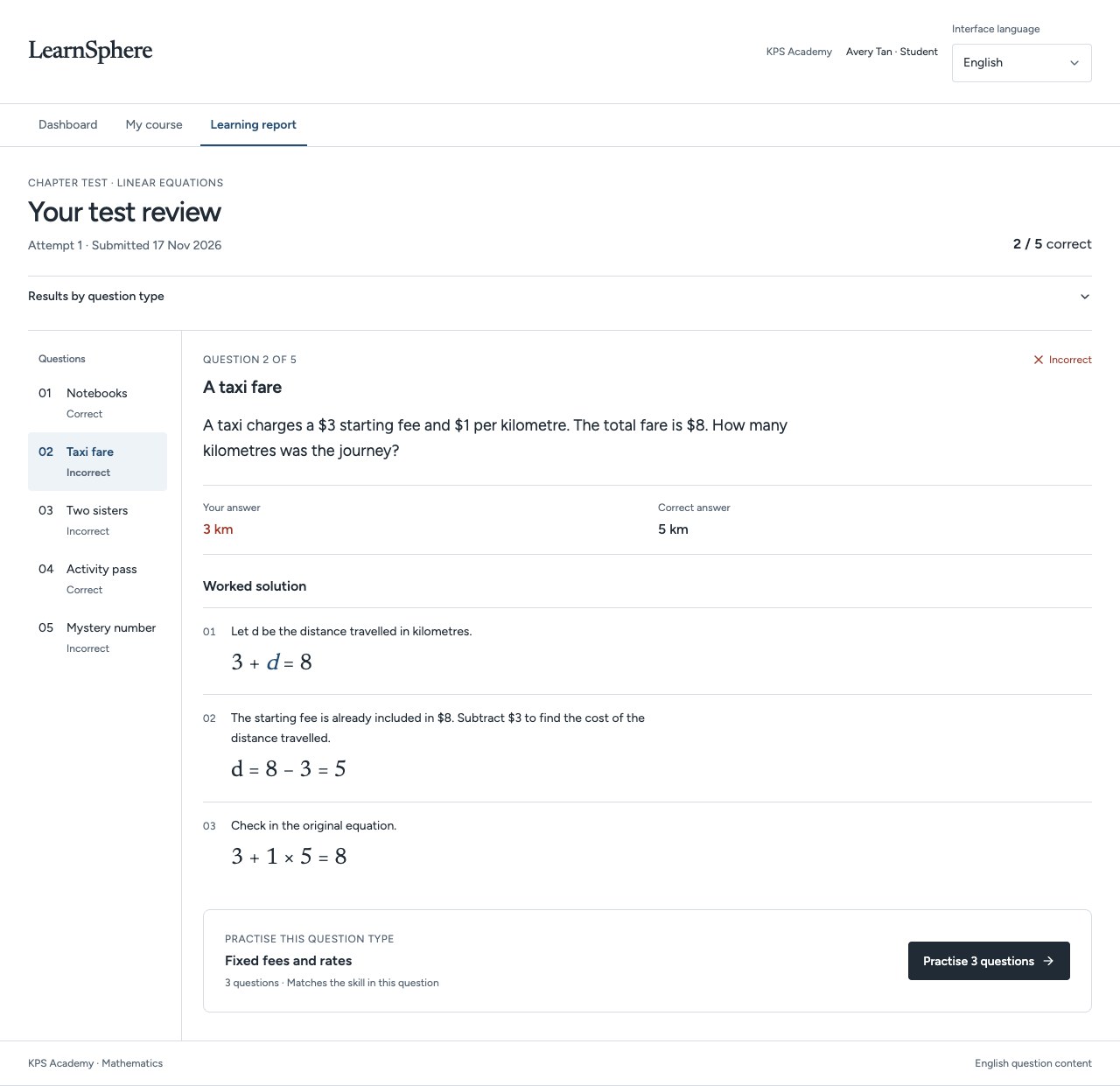
Open a question to compare the submitted answer with the correct answer and a worked solution.
The next practice set connects directly to the question type being reviewed.
 Explore the full screen ↗
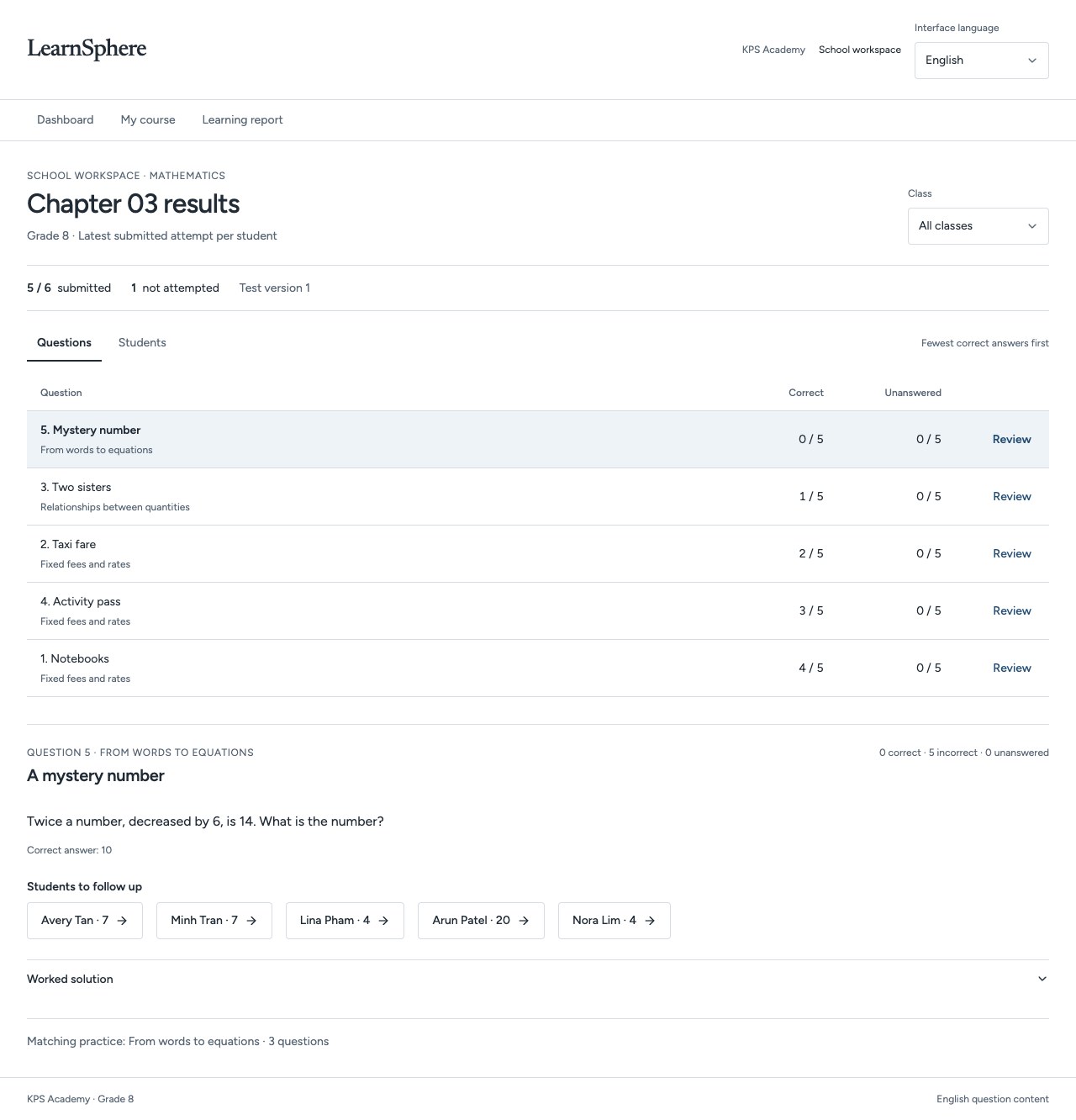
The educator workspace orders questions by correct responses and identifies learners to follow up.
Choose a question, inspect its responses and plan the next classroom explanation.
Explore the full screen ↗Explore the full screen ↗Explore the full screen ↗Actual development preview · Fictional sample data · English interface
01Question navigation, marked items and saved answer states make the assessment journey visible.
02Open a question to compare the submitted answer with the correct answer and a worked solution.
03The educator workspace orders questions by correct responses and identifies learners to follow up.
01 / Assessments
Create and assign assessments, review responses and identify topics for further study.
Learn more02 / Learning & practice
Provide video lessons, explanations and related practice in a structured learning sequence.
Learn more03 / Insights & reports
Review participation, question-level results and comparable student groups to inform teaching decisions.
Learn more