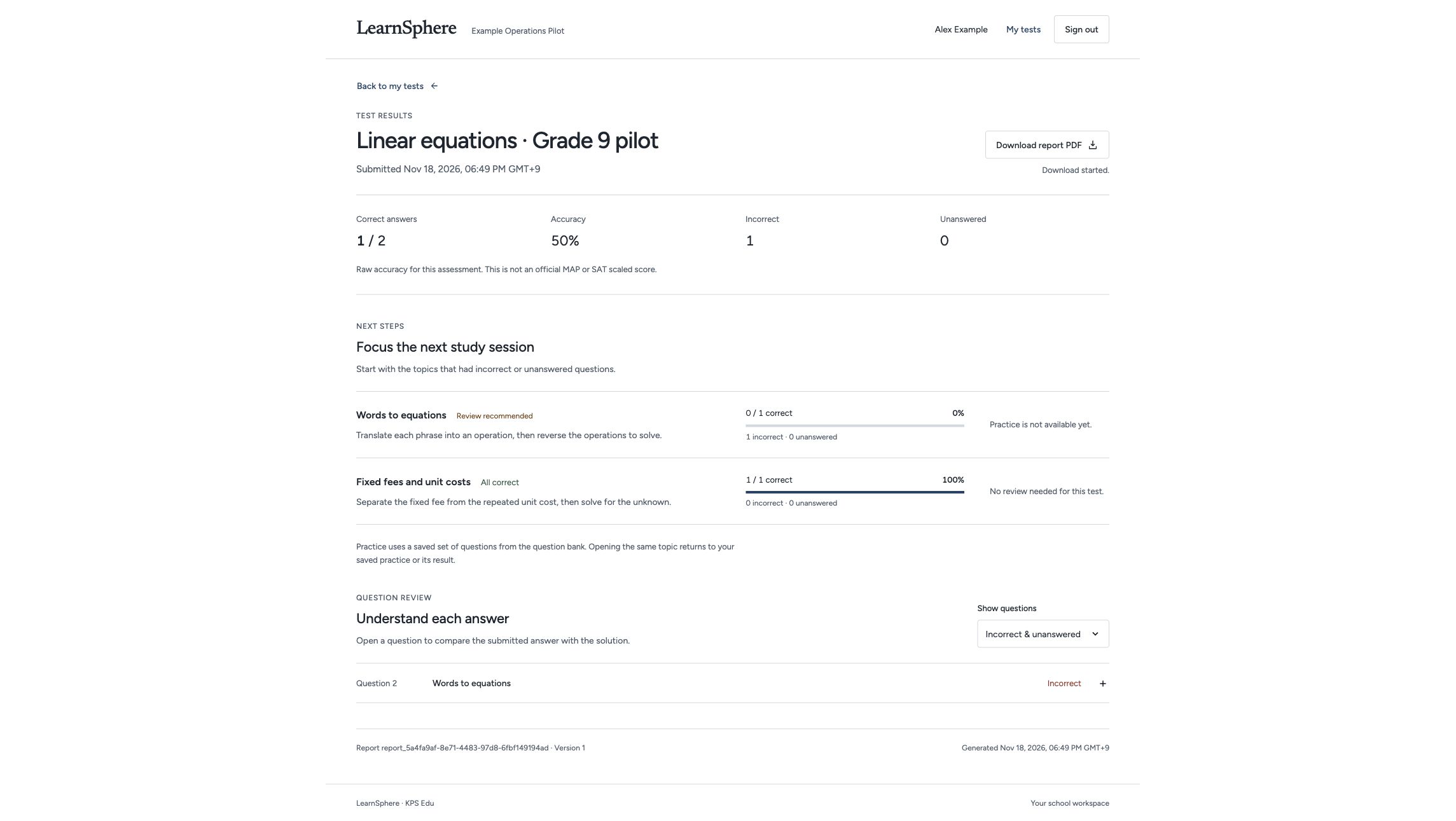
Review published test results, understand the explanations and access related practice.
- View the published result
- Review the explanation
- Open related practice

Features / Assessments
Create and assign assessments, review responses and identify topics for further study.
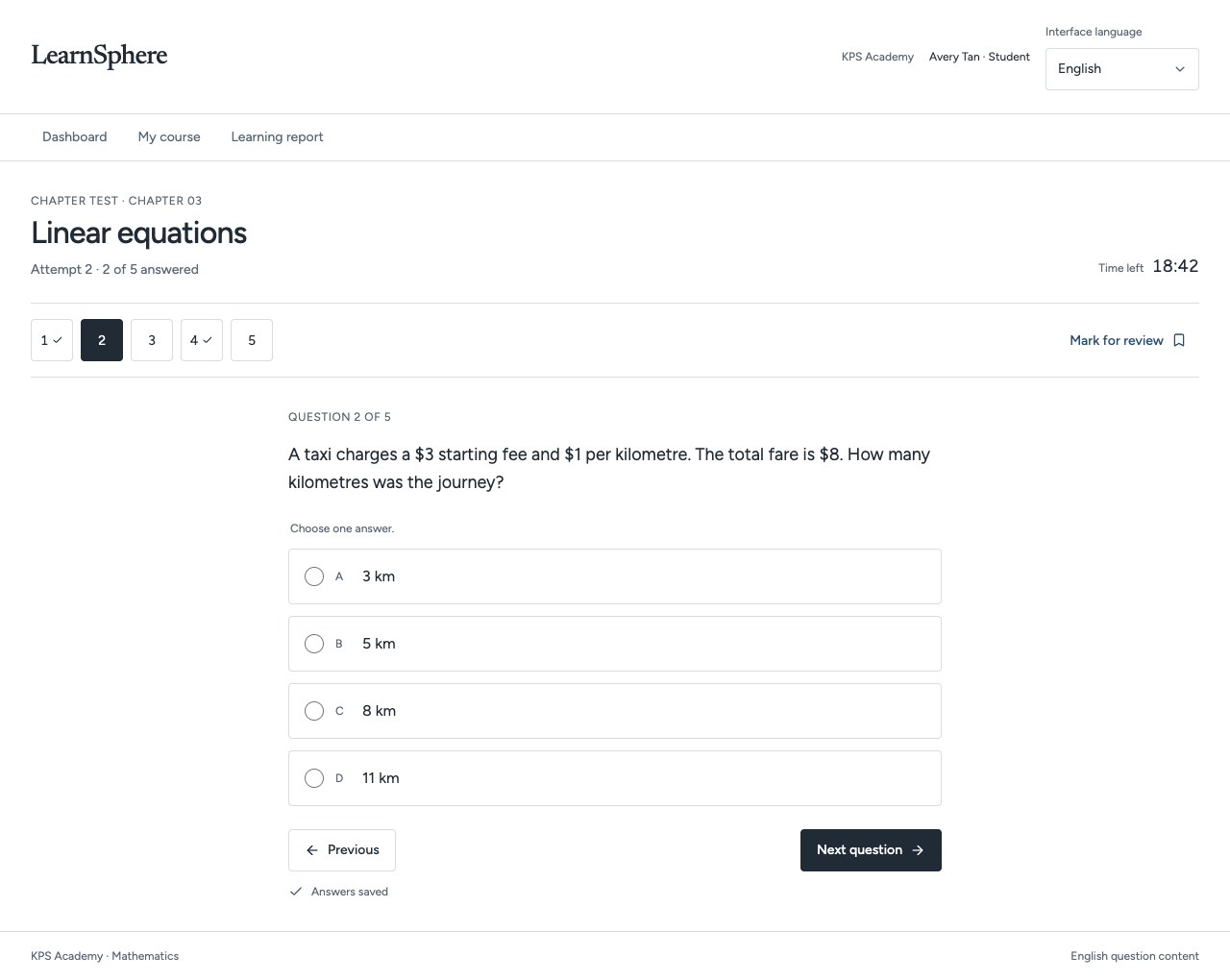 Explore the full screen ↗
Actual development preview · Fictional sample data · English interface
CURRENT PRODUCT WORKFLOWS
Review the current development workflows for course delivery, assessments, reporting and school administration.
App workflows · Reviewed 20 November 2026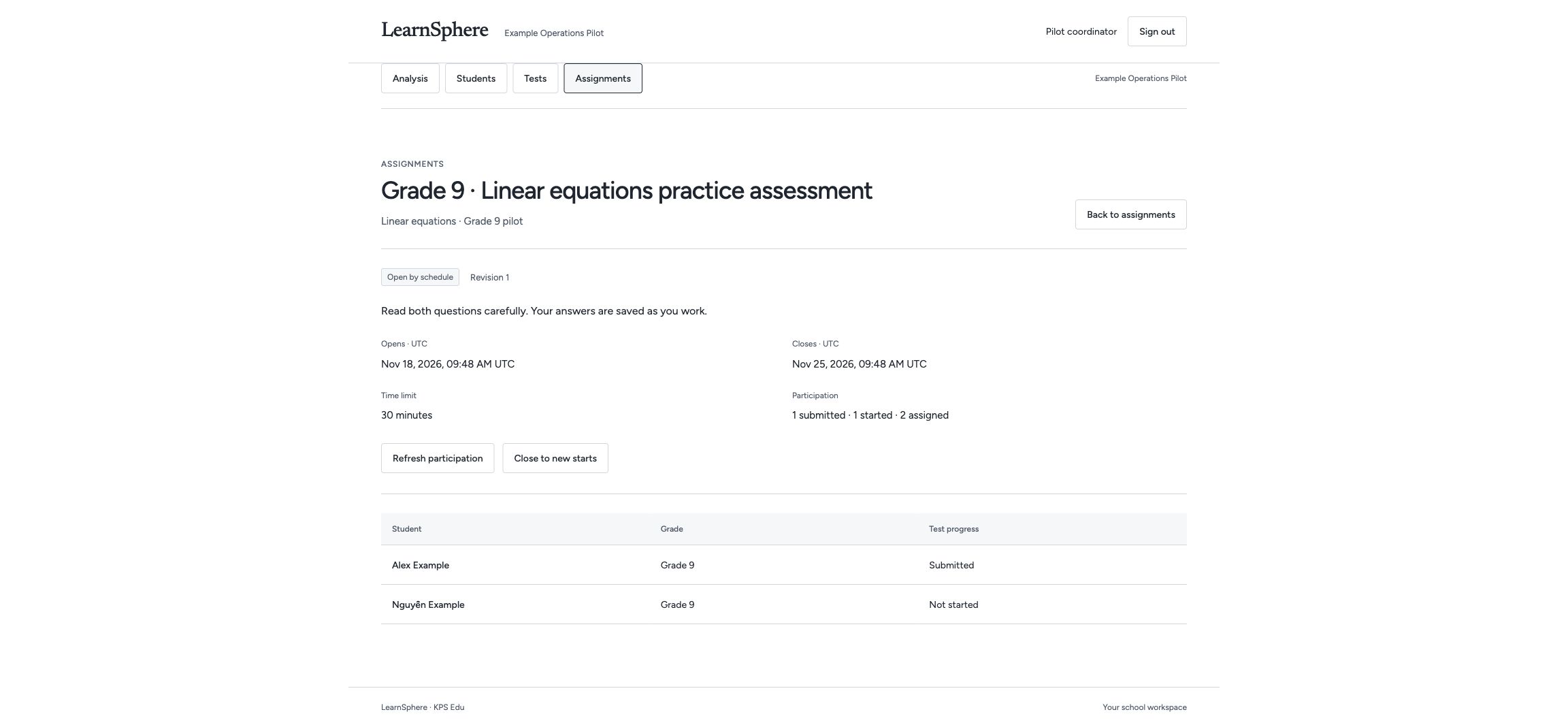
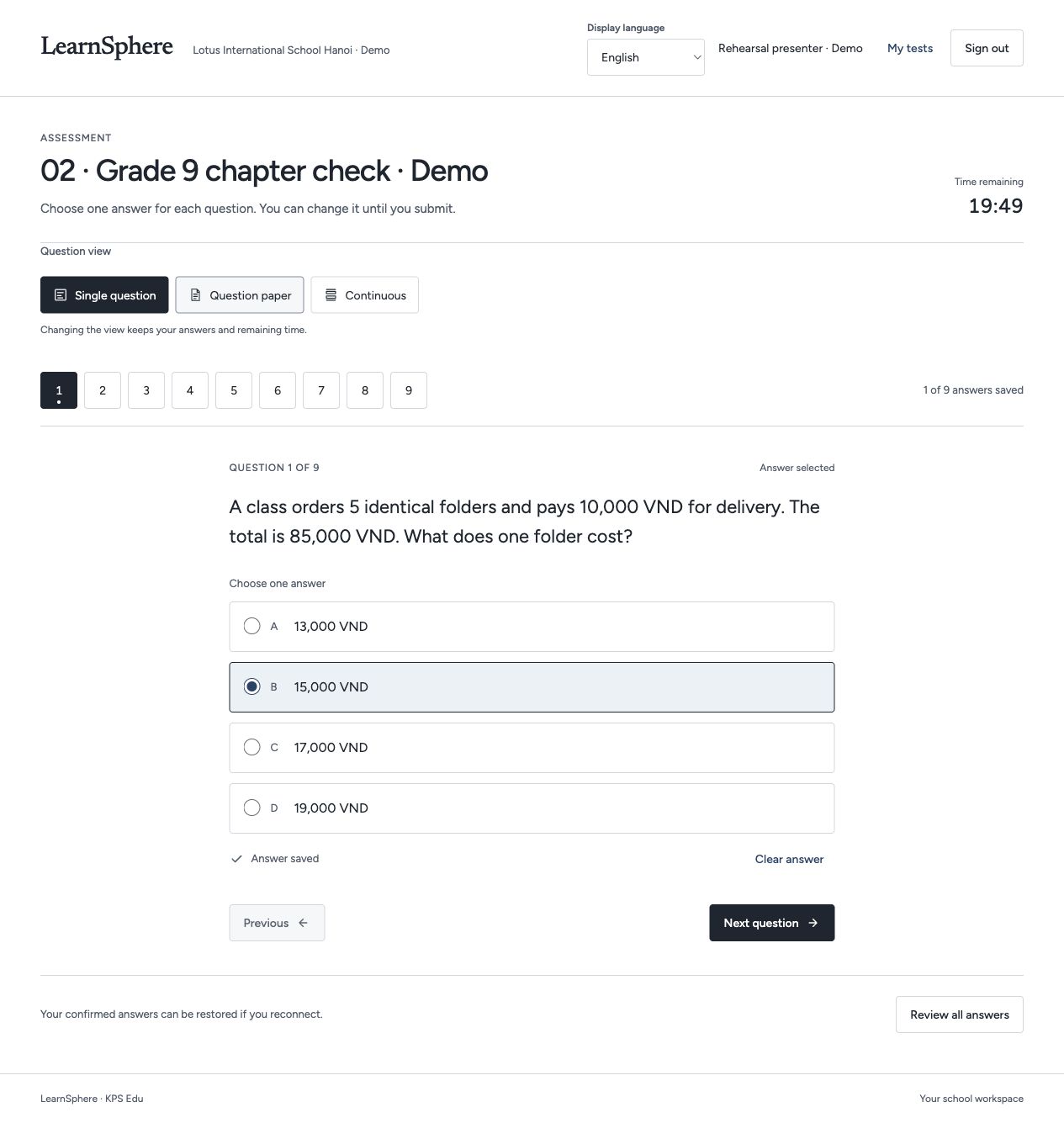
Recorded development screens · Illustrative data · English interface · Narration and captions in four languages. Pilot scope and production availability are agreed with each institution.
Inside LearnSphere
Review the development screens for learners and education staff, with an explanation of each workflow.
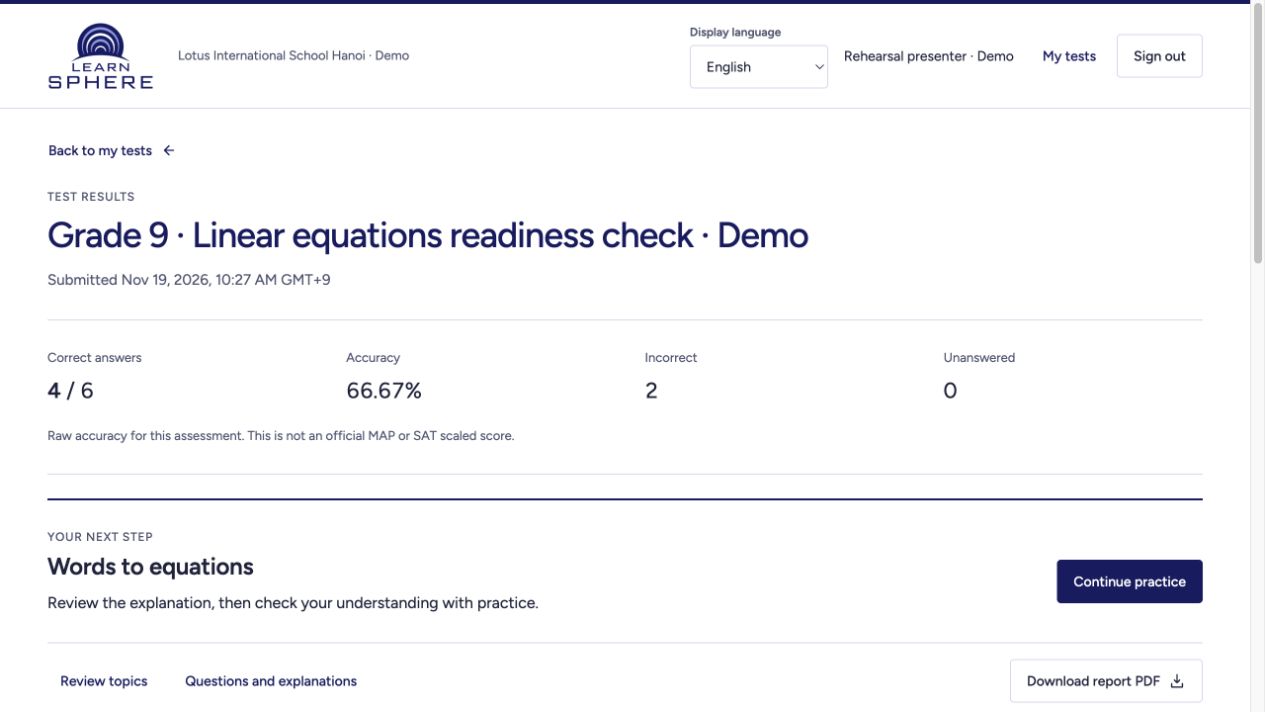
Explore the full screen ↗Question navigation, marked items and saved answer states make the assessment journey visible.
A structured assessment experience gives the review a meaningful starting point.
 Explore the full screen ↗
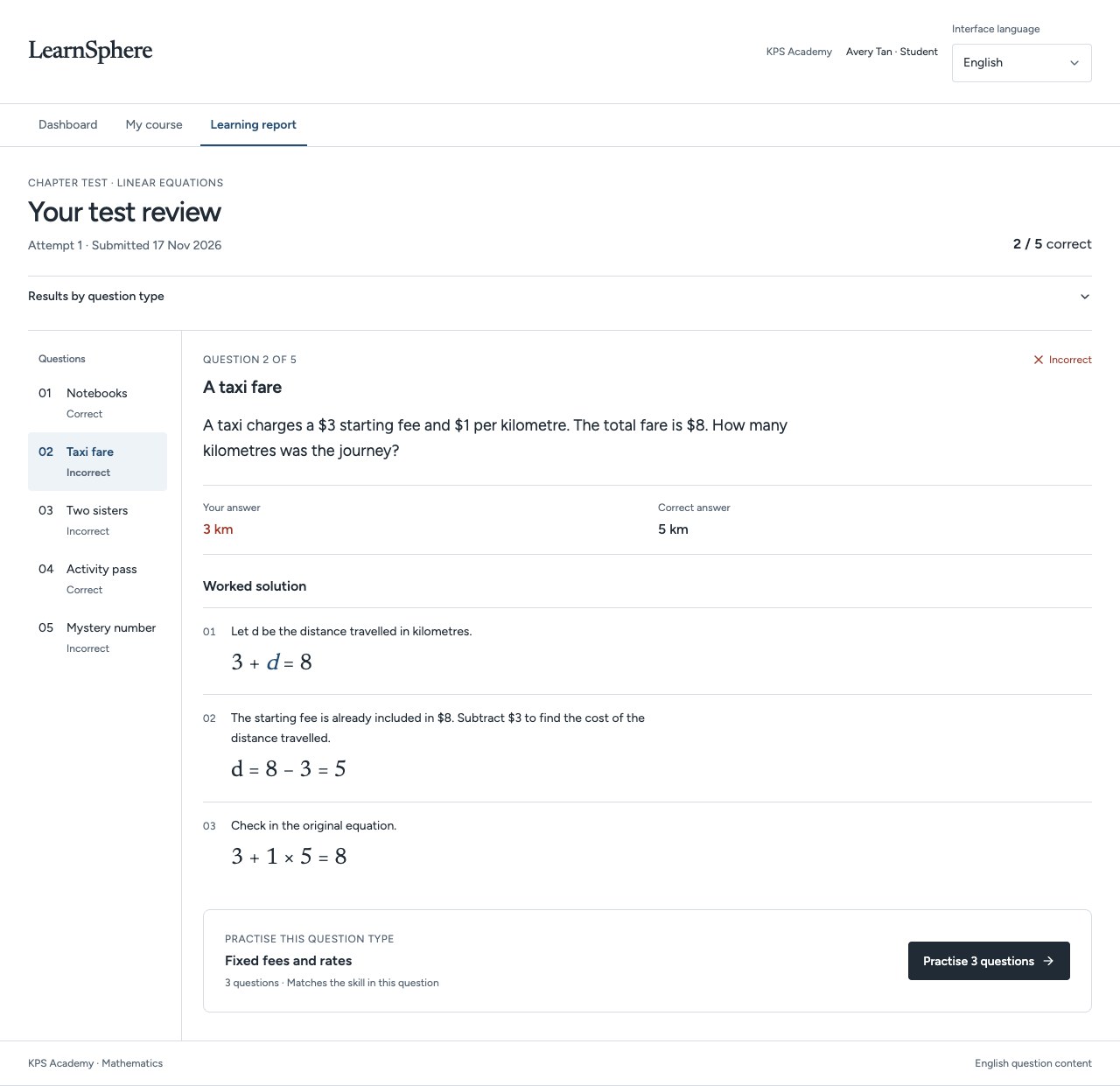
Open a question to compare the submitted answer with the correct answer and a worked solution.
The next practice set connects directly to the question type being reviewed.
 Explore the full screen ↗
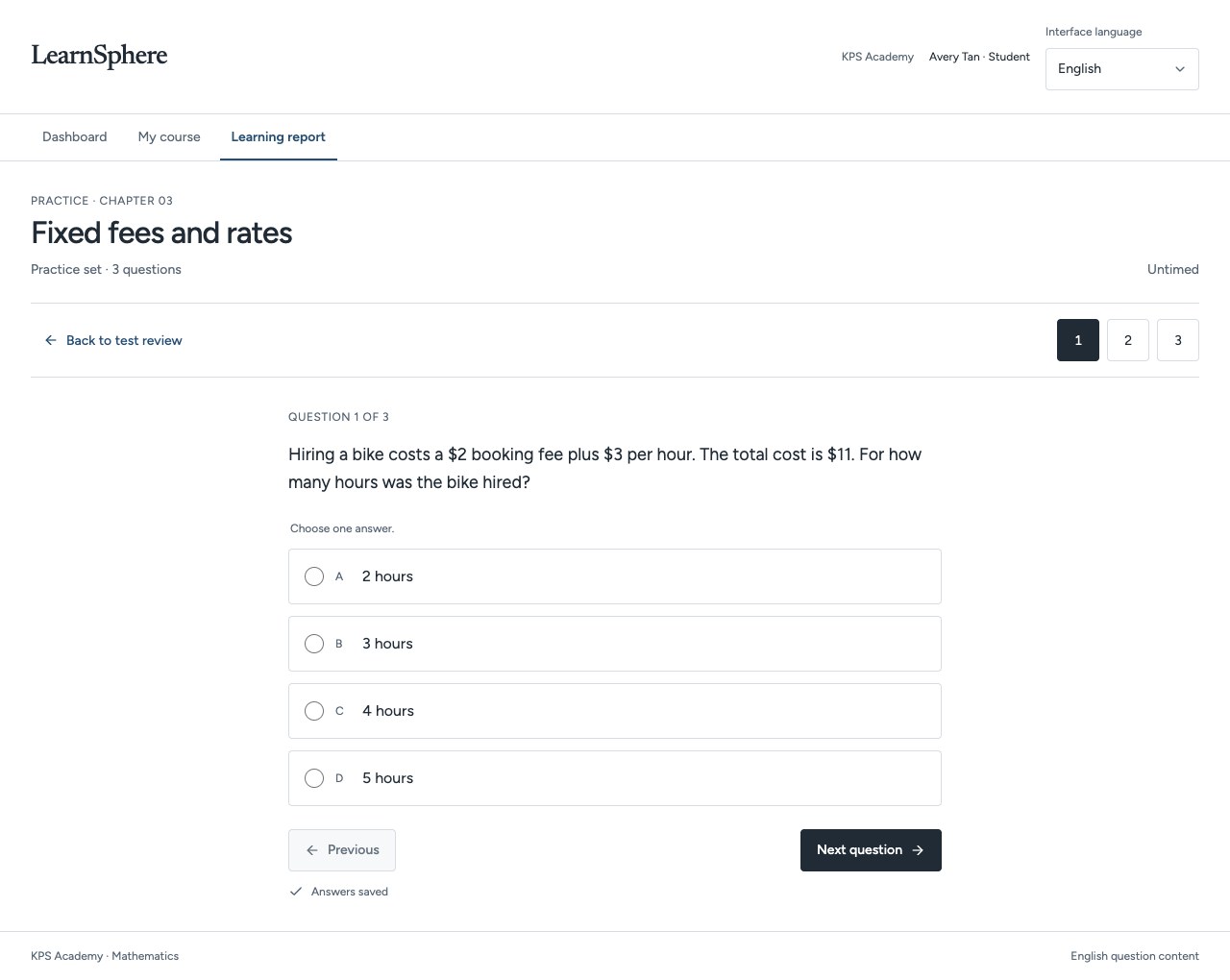
A focused set of three sample questions revisits the skill behind the earlier mistake.
The learner moves from seeing an explanation to trying the method independently.
Use a focused set of questions to explore the learner’s current understanding.
Connect a response to a worked explanation, rather than leaving the learner with a score alone.
Carry a concept identified in assessment into a related learning activity.
EXPLORE THE LEARNING EXPERIENCE
Try an assessment, review an English passage, or watch a short lesson. These examples demonstrate how learning content can be presented within LearnSphere.
Mathematics · Linear equations
If 3x − 4 = 17, what is x?
Choose an answer to see the reasoning.
Illustrative learning interaction. No account or data collection.
ENGLISH · READING COMPREHENSION
From next Monday, the school library will close at 5 p.m. instead of 4 p.m. on Tuesdays and Thursdays. The opening time will remain 8 a.m. Students may use the extra hour for quiet study. Group meetings should take place in the study rooms, which must be booked in advance.
Question 1 of 2
DIGITAL LITERACY · SHORT LESSON
A three-part lesson on identifying a publisher, reviewing evidence and checking context.
Resume position: 0:00
This page counts played sections, not skipped time. It keeps your position during this visit; it does not record attendance or update a learner account.
Changing language restarts the clip. Each language keeps its position during this visit.
The lesson could not load. Try again or open the video directly.
Open videoSample lesson · Four-language narration, visuals and captions
Before sharing information, identify who published it. Look for a named author or organisation, and consider whether they have relevant expertise.
Next, review the evidence. Follow links to the original report or study, and check whether the evidence supports the claim.
Finally, check the date and context. Compare the information with another reliable source. If important details are missing, pause before sharing.
Check understanding
A social post claims a new study proves its point, but links only to another post. What should you do next?
This short check is an illustrative activity, not a graded assessment.
Illustrative learning samples. No account required; responses are not submitted or saved.
LearnSphere is in development. Product scope, curriculum, languages and availability are defined with each institutional partner.